Free SSL Certificate Setup for WordPress on Google Cloud (Click-to-Deploy)
1. Connect to WordPress via SSH
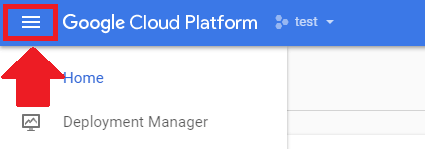
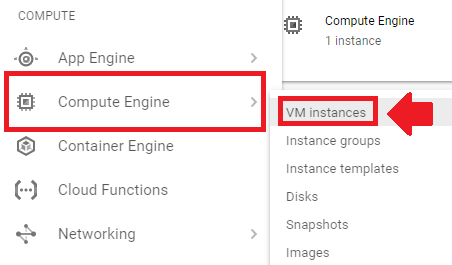
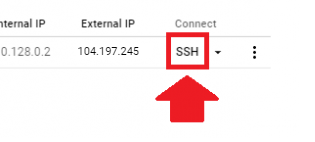
Go to your Google Compute homepage and click the hamburger menu in the upper left-hand corner.Go to your Compute Engine, then to VM instances to access your WordPress installation.Click the SSH button to connect to your website’s server.
2. Install CertBot Client
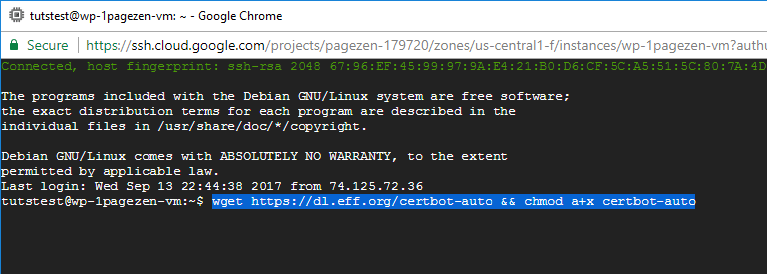
Now that you’ve connected to your website’s Apache server, you are going to execute the command to install the Certbot client. The Certbot client is used to issue the SSL certificates that will be used later on in this tutorial.
After executing each of these commands, you can either stay in the same SSH window or exit and open a new one.
3. Generate Certificates
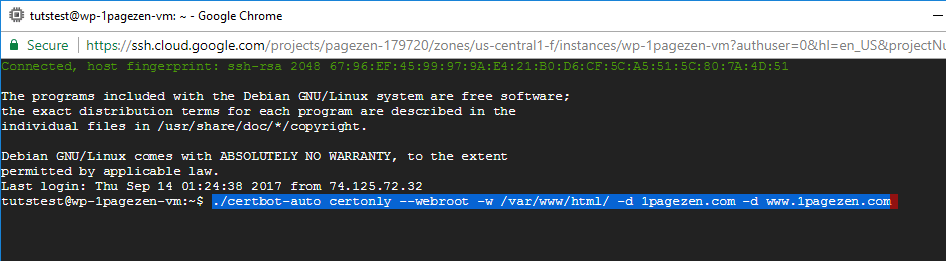
In this step you are going to execute the command below in order to tell the Certbot client to create SSL certificates for your website. Remember to replace 1pagezen.com with your own domain name.
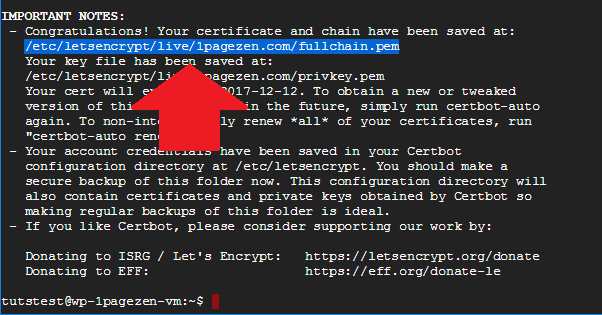
After executing these commands, your certificates will be generated. Take note of the directory where your certificates are installed.
4. Test Certificate Renewal
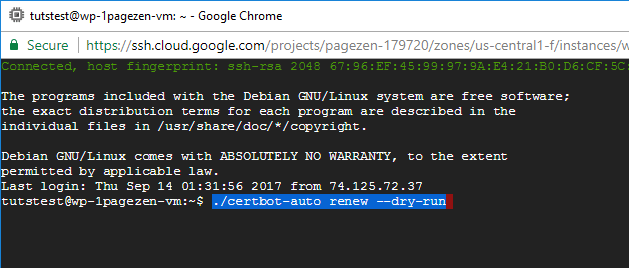
Before setting up auto-renewal for your certificates, you are first going to execute the commands below in order to test the auto-renewal function.
./certbot-auto renew --dry-run
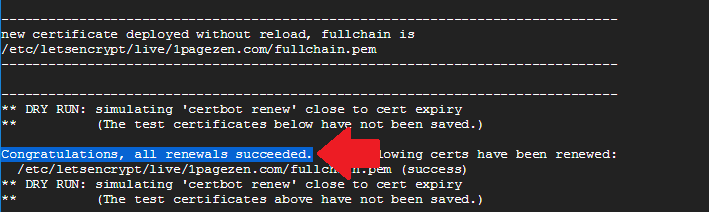
If you get a success message, it means that the certificates are renewing properly.
5. Setup Auto-Renewal
Important Notice: The auto-renew configuration instructions outlined in this section are no longer valid. For updated instructions on configuring auto-renewal, click here. (It is recommended that you skip to step 6 and finish this tutorial first).
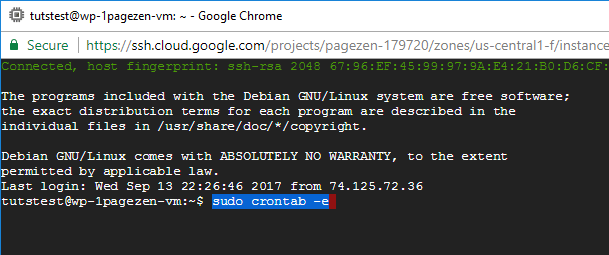
In order to program your certificates to automatically renew themselves, you need to configure a crontab that will automatically renew the SSL certificates before they expire.
sudo crontab -e
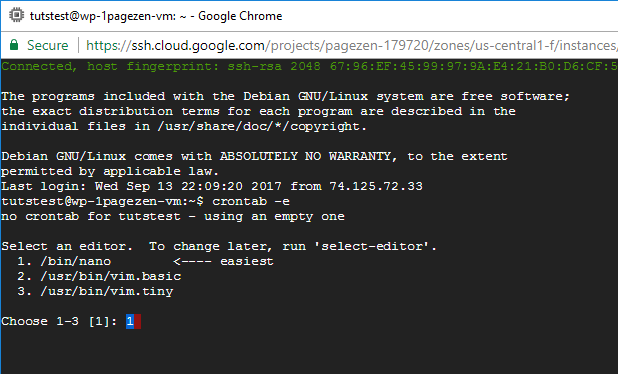
After executing the sudo crontab -e command, choose the text editor to use to create the crontab. Nano (1) is the easiest text editor to use.
1
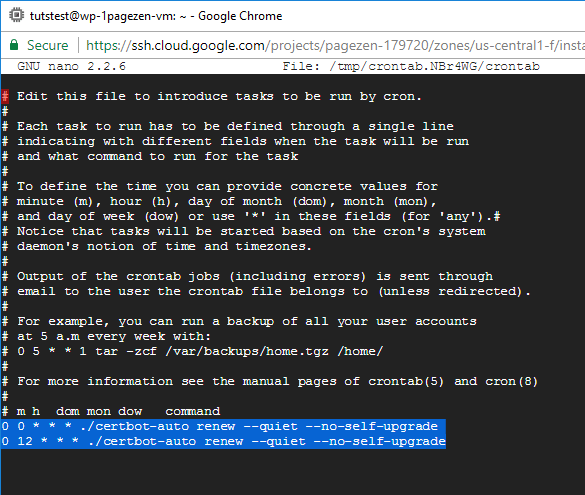
Now that you’ve created a new crontab file, scroll to the bottom and paste the commands listed below. The command will tell Certbot to check for renewals twice per day.
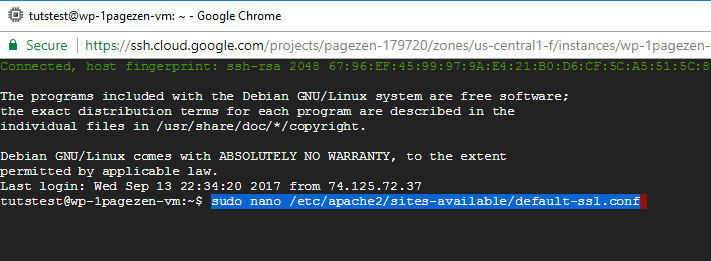
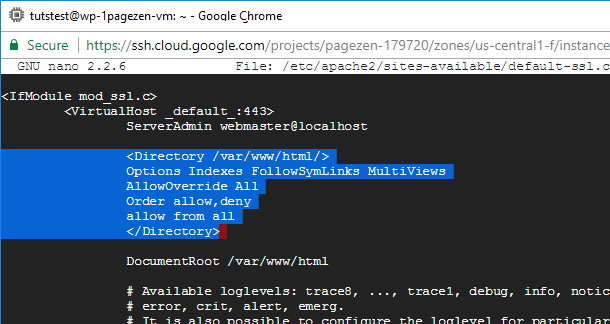
At the top of the default-ssl.conf file, paste the following lines of code in order to tell your server to direct network traffic to HTTPS port 443.
<Directory /var/www/html/>
Options Indexes FollowSymLinks MultiViews
AllowOverride All
Order allow,deny
allow from all
</Directory>
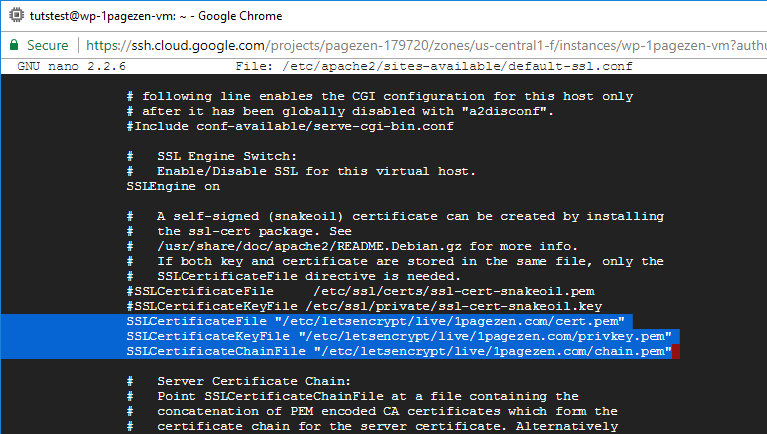
The next step is to use the down-arrow key to scroll down towards the bottom of the default-ssl.conf file. Place a # sign next to the existing snakeoil certificates, and paste the path to your three SSL certificate files as shown in the command below, making sure to replace 1pagezen.com with your own domain name.
After adding this code, enter ctrl+o to save changes, followed by ctrl+x to exit back to your home screen.
7. Enable HTTPS Redirect
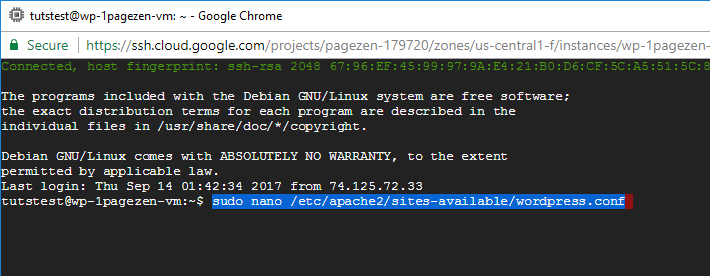
The next thing you will do is configure your Apache server to only serve the HTTPS version of your website. To do this, you will edit your wordpress.conf file, which you can access by executing the command below.
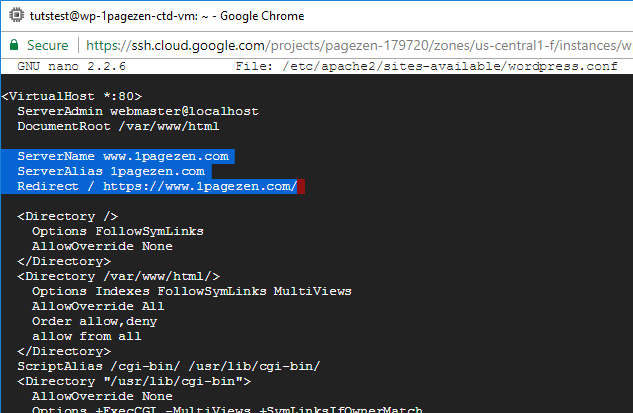
Once inside of the wordpress.conf file, you will add the code below to tell your server to only serve the HTTPS version of your site. Remember to replace 1pagezen with your website's domain name. (Update 03/08/2018: 'permanent' added to code to mark redirect as a 301 instead of 302).
After adding the code to your wordpress.conf file, enter ctrl+o to save your changes and ctrl+x to exit the wordpress.conf file.
8. Restart the Apache Server
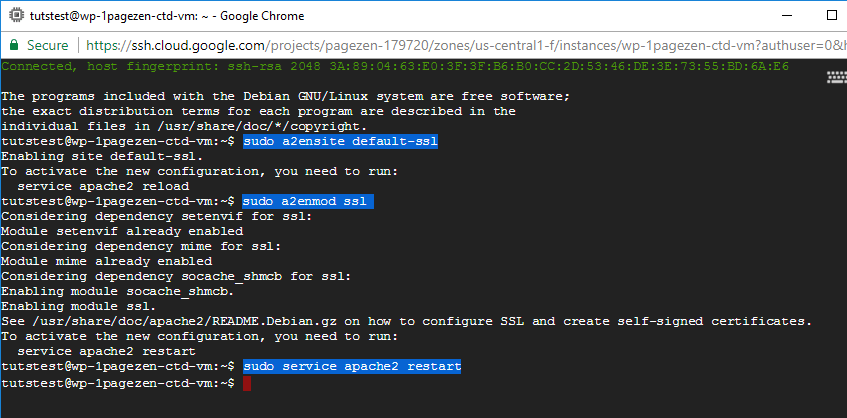
In order for your certificate changes to take effect, you need to update/restart you Apache server by executing all three of the commands listed below.
sudo a2ensite default-ssl

sudo a2enmod ssl

sudo service apache2 restart
9. Update WordPress URLs
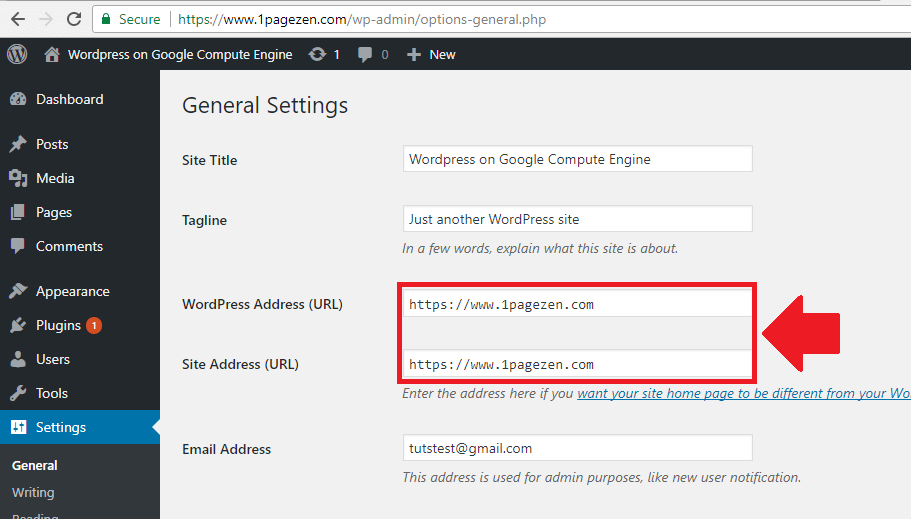
The last step in this tutorial is to go into WordPress > Settings > General, and replace your current domain name with the https:// version. Click to save changes. If your SSL certificate isn't working, check your configuration at www.ssllabs.com/ssltest/.
留言
張貼留言